
Description
Bulk post import and page import for WordPress. Moving an old static site into WordPress usually means copying and pasting page after page. This plugin does it in one go: put your HTML files in a ZIP, upload it, look through what the importer found, and approve the ones you want. Every file becomes a post, or a page if that is what you are rebuilding.
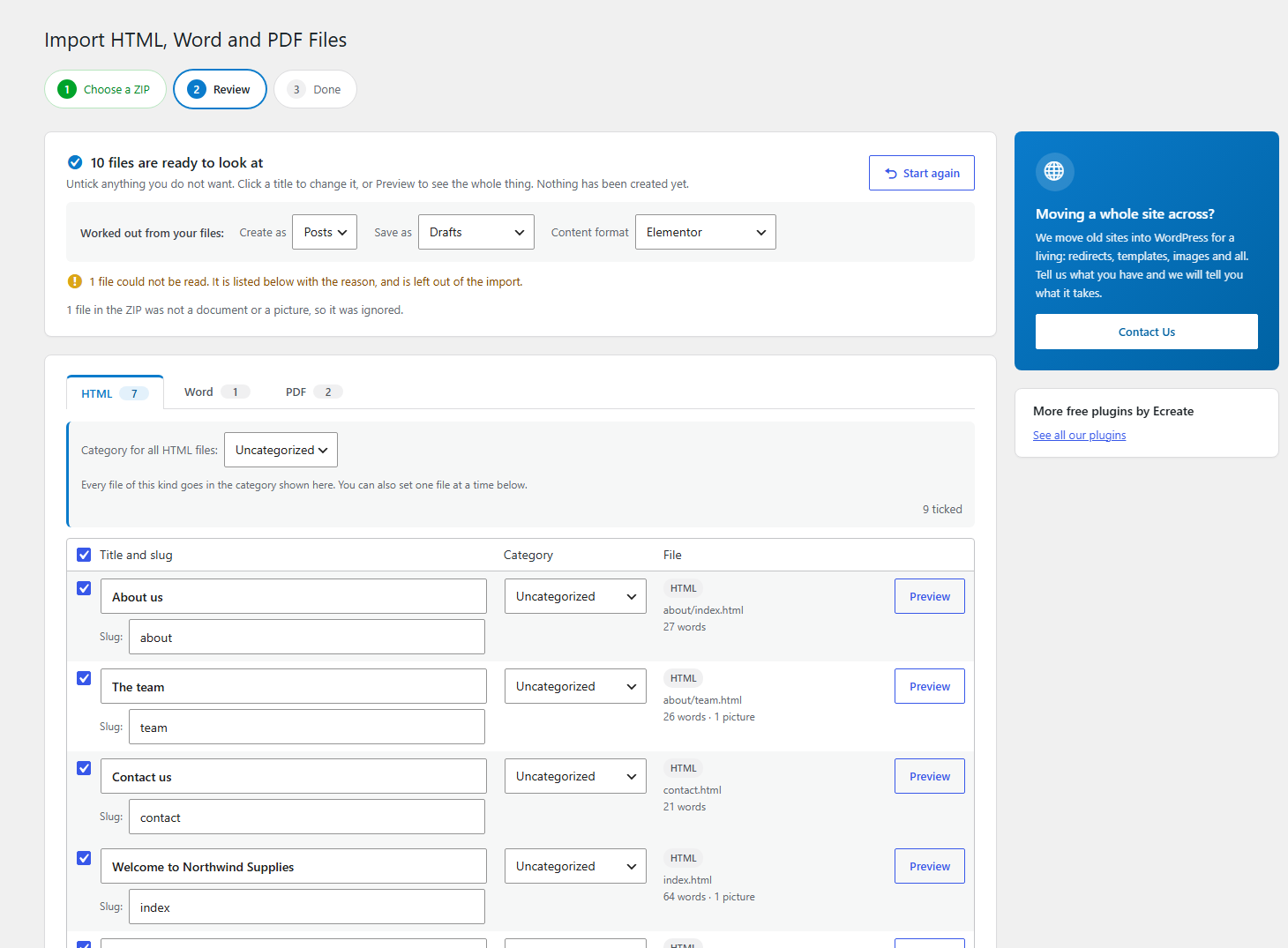
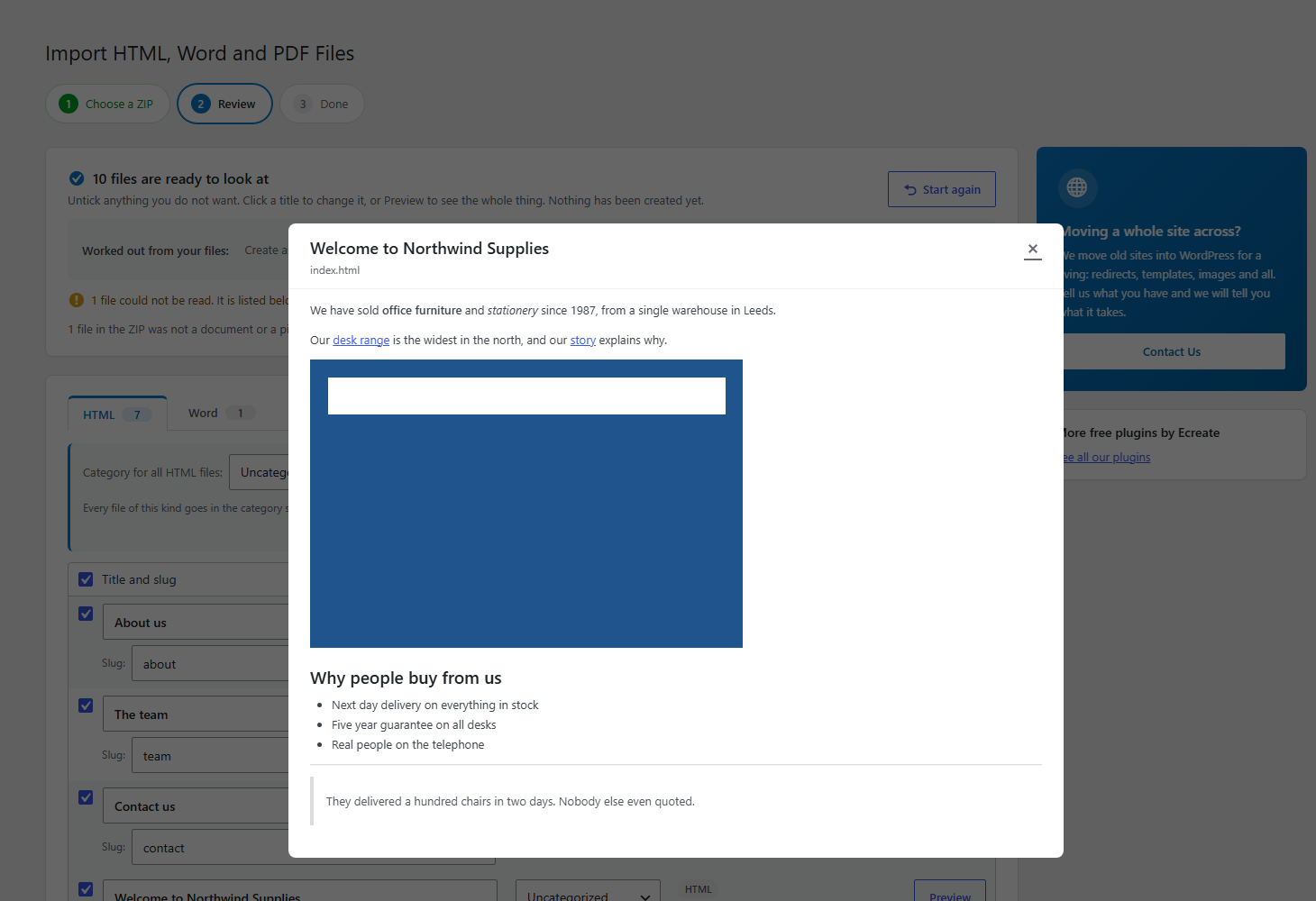
Nothing is created until you say so. That is the main idea. The importer reads your files into a review list first, shows you the title, the address and the content it worked out for each one, lets you pick the category, and lets you correct anything before a single post exists.
It also reads Word documents and PDFs, so a folder of .docx reports or policy PDFs can become posts the same way.
Simple by default
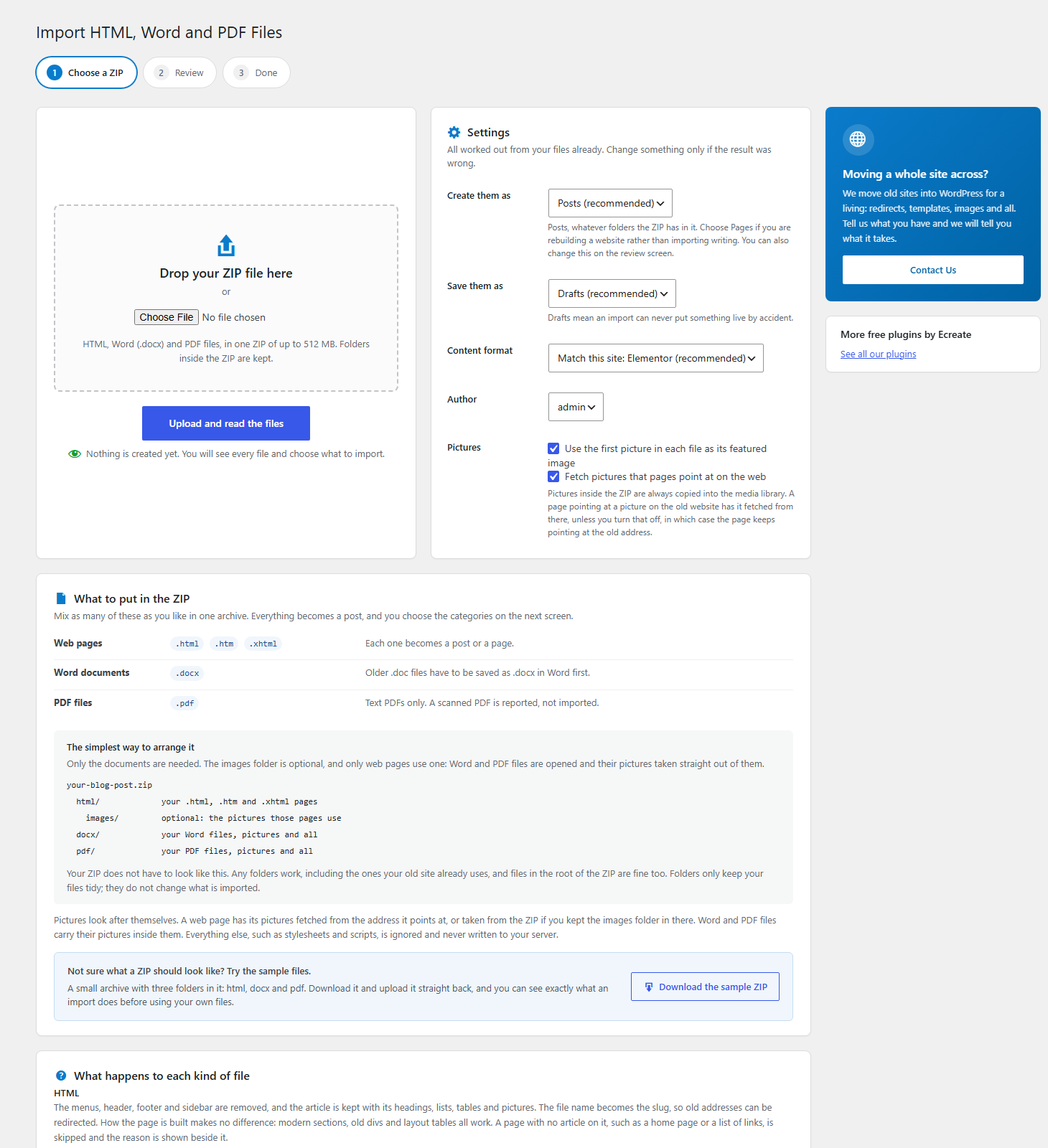
There is no settings page. Everything an importer normally asks for up front is worked out from your files instead:
- The title comes from the h1, or the page title, or the file name
- The content is the main block of writing, with the menu, header, footer and sidebar removed
- Everything becomes a post. Choose pages instead if you are rebuilding a website
- Categories are chosen by you on the review screen, for a whole file type at once or one file at a time
- The file name becomes the address, so your old links can be redirected to the new ones
- The meta description becomes the excerpt
Every one of those is shown in the review list and can be changed there, one at a time or in bulk. The advanced panel is there if you need it, and you can ignore it.
What you can put in the ZIP
Mix as many of these as you like in one archive:
- Web pages: .html, .htm, .xhtml
- Word documents: .docx (older .doc files have to be saved as .docx in Word first)
- PDF files: .pdf, with text in them. A scanned PDF is reported rather than imported
The simplest way to arrange a ZIP, which is also how the sample one is arranged. Only the documents are needed; the images folder is optional, and only web pages ever use one, because Word and PDF files are opened and their pictures taken straight out of them:
your-blog-post.zip
  html/              your .html, .htm and .xhtml pages
    images/          optional: the pictures those pages use
  docx/              your Word files, pictures and all
  pdf/               your PDF files, pictures and all
Your ZIP does not have to look like that. Any folders work, including the ones your old site already uses, and files in the root of the ZIP are fine too. Folders only keep your files tidy; they do not change what is imported. The upload screen shows this as well, so you do not have to remember it.
Pictures look after themselves. A web page has its pictures fetched from the address it points at, or taken from the ZIP if you kept the images folder in there. Word and PDF files carry their pictures inside them. Everything else, such as stylesheets and scripts, is ignored and never written to your server.
Try it with the sample files
The upload screen has a Download the sample ZIP button. It gives you a small archive with one folder per kind of file, and nothing else in it:
- html/ three web pages: welcome.html, about-us.htm and desks.xhtml
- docx/ a Word file with heading styles, lists, bold, italic, a table and a picture
- pdf/ a PDF with real text in it
Upload it straight back and you can see exactly what an import does, and what the review screen looks like, before using your own files. The three web pages are built three different ways on purpose, because real sites are not all alike: one uses divs, one uses modern HTML5 sections, and one is laid out inside a table.
The sample is built on your own server when you ask for it, so there are no sample files sitting in the plugin taking up space.
What it imports
- HTML: headings, paragraphs, lists, tables, quotes, code and images. Menus, headers, footers, sidebars, scripts and tracking code are stripped out.
- Word (.docx): Word heading styles become real headings, bullet and numbered lists stay lists, bold and italic survive, tables come across, and pictures inside the document are copied into your media library.
- PDF: the text is read and turned into headings and paragraphs as far as a PDF allows. See the honest note below.
Modern content, not a blob of HTML
Imported content is written as real block editor blocks by default, so it can be edited like anything else you write in WordPress. If your site uses the classic editor, you get clean HTML instead. If Elementor is active, pages can be built as Elementor widgets, ready to open in the editor.
Images and links
Pictures look after themselves, whichever way they are stored:
- A page pointing at a file in the ZIP, such as images/photo.jpg, uses that file
- A page pointing at a full web address has the picture fetched from there, which is the only copy a page copied out of a browser has. This can be turned off in the advanced settings
- Word and PDF files carry their pictures inside them, so nothing extra is needed
Each picture is copied into the media library once, however many pages use it, and the first picture on a page can become its featured image. Links between the imported pages are pointed at their new addresses once everything exists.
Undo
Every post the importer creates is marked with the import it came from, so the finished screen offers to undo the whole thing. That deletes exactly those posts, for good, and touches nothing else on your site. They are not left in the trash, because an import of a few hundred files would leave a few hundred things to clear out by hand. The screen asks before it does it.
Built for big imports and small hosting
Files are read and created a few at a time, with a progress bar, so a ZIP of five hundred pages finishes on ordinary shared hosting instead of hitting the time limit. You can leave the page and come back; the import stays where it is.
Honest about PDFs
A PDF does not contain a document. It contains instructions for drawing text at positions on a page, with no headings and no paragraphs. Those have to be worked out from the size and position of the text, so PDF results are a good guess rather than a certainty. That is exactly why the review step exists.
A scanned PDF holds pictures of text rather than text. Reading one needs character recognition, which WordPress cannot do, so the plugin tells you that the file was scanned and leaves it out rather than creating an empty post.
Need more?
We build and migrate WordPress sites for a living. If you have an old site to move, with redirects, templates and theming to match, tell us about it and we will tell you what it takes.
Screenshots
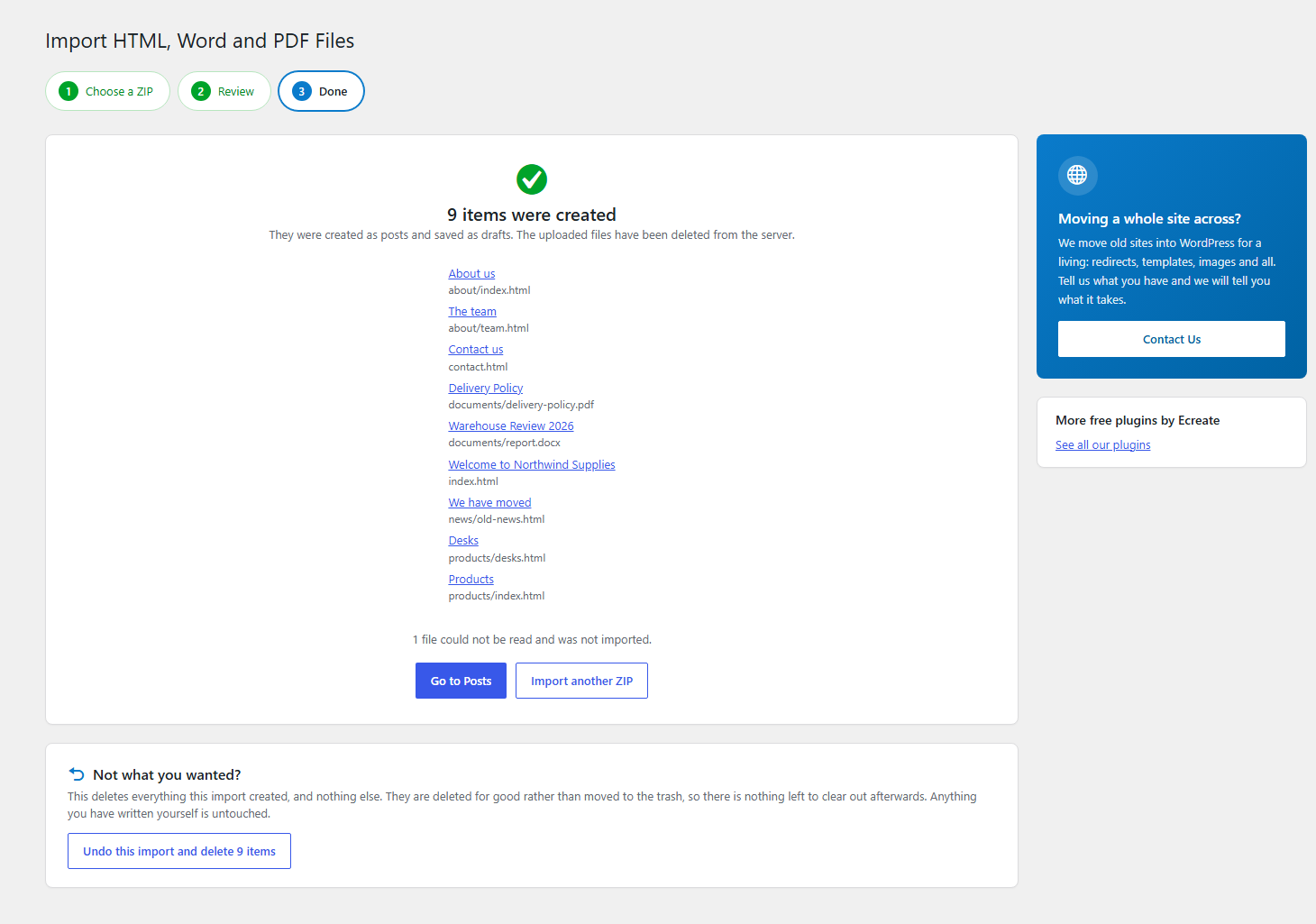
Installation
- Install the plugin through Plugins, Add New, or upload the ZIP.
- Activate it.
- Go to Tools, Import HTML Files.
- Upload a ZIP of your files, look through the list, and import the ones you want.
FAQ
-
How do I bulk import posts into WordPress?
-
Put the files in a ZIP and upload it on Tools, Import HTML Files. Everything that can be read becomes a post, and you tick the ones you want before anything is created. There is no limit on how many files a ZIP can hold: they are read a few at a time, so a big import does not time out.
-
Can I import pages instead of posts?
-
Yes. Posts are what you get unless you change it. One setting on the upload screen switches the whole import to pages, which is what you want when you are rebuilding a website rather than a blog.
-
How do I import a static HTML website into WordPress?
-
Put the site’s HTML files in a ZIP, keeping the folders as they are, and upload it on Tools, Import HTML Files. The importer reads every file, shows you what it found, and creates posts or pages for the ones you approve. The file names become the addresses, so your old links can be redirected to the new ones.
-
Can I convert a Word document to a WordPress post?
-
Yes. Put your .docx files in a ZIP and upload it. Word heading styles become headings, lists stay lists, and pictures in the document are copied into the media library. Old .doc files have to be saved as .docx in Word first.
-
Can I turn a PDF into a blog post?
-
Yes, with the caveat above: a PDF has no headings or paragraphs stored in it, so the structure is worked out from the text size and position. You see the result in the review list before anything is created. A scanned PDF cannot be read at all and is reported rather than imported.
-
What file types can I upload?
-
Three kinds of file become posts: .html, .htm and .xhtml web pages, .docx Word documents, and .pdf files with text in them. Pictures come along with the documents that use them, either from the ZIP or fetched from the address a page points at, in .jpg, .jpeg, .png, .gif, .webp, .avif, .bmp or .ico. Anything else, including stylesheets, scripts and .php files, is ignored. The upload screen lists all of this, so you do not have to remember it.
-
Can I try it before using my own files?
-
Yes. The upload screen has a button that gives you a sample ZIP with three folders in it: html, docx and pdf, each holding a file of that kind. Upload that and you can see the whole import, including the review screen, in about a minute. Nothing is created until you approve it, and the finished screen can undo the whole thing.
-
Does it import anything without asking?
-
No. Files are read into a review list and nothing is created until you press the import button. Imported content is saved as drafts by default, so an import can never put something live by accident.
-
Will it work with Elementor?
-
Yes, if Elementor is active. Pages can be built as Elementor widgets: headings become heading widgets, text becomes text editor widgets, and images become image widgets. Elementor is never required.
-
They are removed. The importer finds the main block of writing on each page and leaves the parts that repeat on every page behind, which is almost always what you want. If it gets it wrong on an unusual site, the advanced panel lets you say which element holds the content.
-
Will my old links still work?
-
Links between the pages you import are rewritten to the new addresses automatically. Because the file name becomes the slug, you can also redirect the old addresses to the new ones with any redirect plugin.
-
My ZIP is bigger than the upload limit. What now?
-
Split it into a few smaller ZIPs and import them one after another, or ask your host to raise the upload limit. The screen shows the largest upload your server allows.
-
Does it send my content anywhere?
-
No. Nothing you upload leaves your server, there is no tracking of any kind, and the uploaded files are deleted when the import finishes or is cancelled.
The one time the plugin talks to another server is during an import you have started: when a page points at a picture by its full web address, that picture is fetched so it can go into your media library. It is fetched through WordPress’s own safe request function, which refuses addresses on private networks, and you can turn it off in the advanced settings, in which case the page simply keeps pointing at the old address.
Reviews
There are no reviews for this plugin.
ডেভেলপার এবং কন্ট্রিবিউটর
“Ecreate HTML Importer – Bulk Post and Page Import from HTML, Word and PDF” is open source software. The following people have contributed to this plugin.
কন্ট্রিবিউটর

ডেভেলপমেন্ট এ আগ্রহী?
Browse the code, check out the SVN repository, or subscribe to the development log by RSS.
Changelog
1.0.0
- First release.
- Import HTML, Word (.docx) and PDF files from a ZIP as posts or pages.
- Review and approve every file before anything is created, with per file editing of the title, address and excerpt, and a category chosen for a whole file type or one file at a time.
- Automatic detection of the title, the main content and the content format, so no setting up is needed.
- Output as block editor blocks, classic HTML or Elementor widgets.
- Images copied into the media library, from the ZIP, from the address a page points at, or from inside a Word or PDF file; featured images set; and links between imported pages rewritten.
- Batched reading and importing with a progress bar, for large archives on shared hosting.
- Undo an import from the finished screen.
- A downloadable sample ZIP, built on your own server, with an html, a docx and a pdf folder in it.